What you're actually doing when you add a chatbot to Squarespace
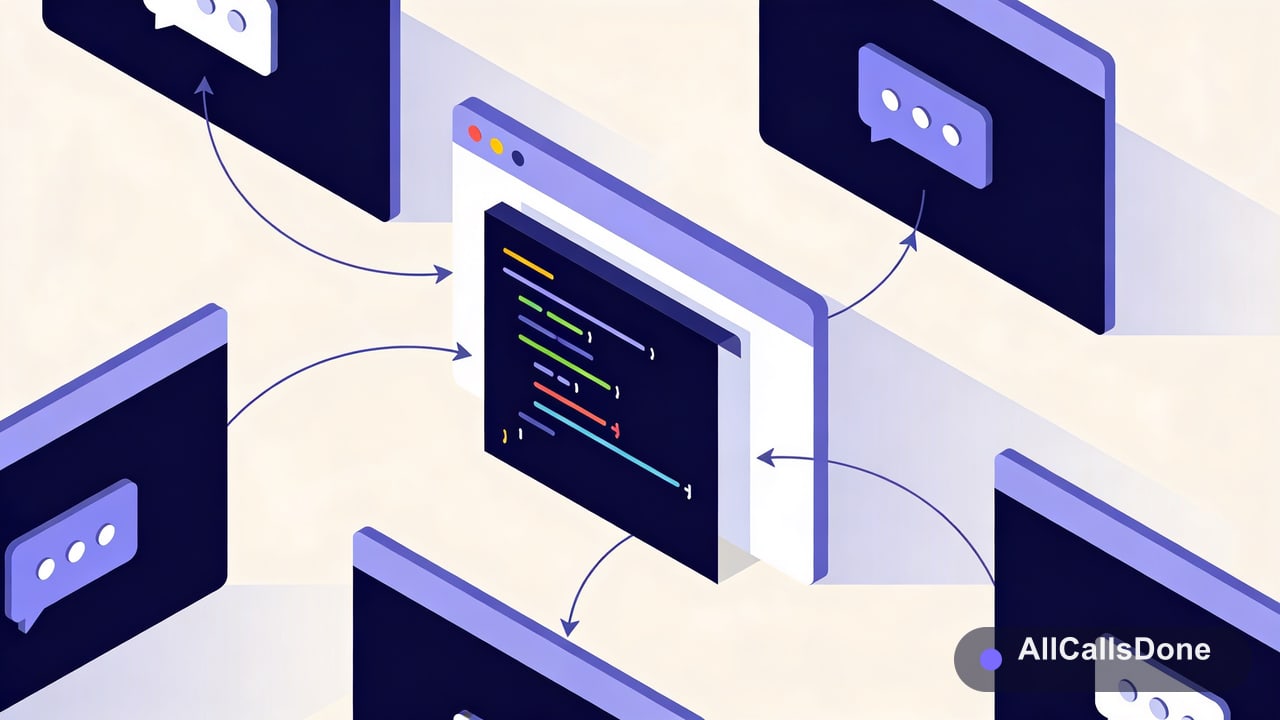
Squarespace does not have a built-in chatbot. There's no toggle in the settings that turns one on. So adding a chatbot means picking a chatbot service, getting their embed code, and pasting it into one of the spots where Squarespace lets you add custom code.
That sounds more technical than it is. The "code" is a single line you copy from the chatbot provider and paste in. You don't write anything yourself. The whole job is knowing where to paste it and what plan you need to do it.
There are two places Squarespace lets you paste a chatbot:
- Code Injection, which adds the chatbot to every page of your site at once.
- A Code Block, which adds it to one specific page.
For a chatbot, you almost always want Code Injection so it follows visitors everywhere. I'll cover both, the plan requirement that trips people up, how to pick a chatbot, and the Squarespace-specific reasons a widget sometimes refuses to show.
Before you start: check your plan
Here's the part Squarespace doesn't make obvious. Custom code, which includes both Code Injection and Code Blocks, is only available on the Business plan or higher. On the entry-level Personal plan, those options are either missing or disabled.
So before anything else, confirm your plan supports custom code. If you're on Personal, you have two choices: upgrade to Business, or use a chatbot that offers an official Squarespace Extension instead of a raw code snippet (a few do, and they install without touching custom code).
Squarespace changes its plan names and tiers from time to time, so check the current plan features page if you're not sure what custom code your plan includes. The rule of thumb has held for years though: pasting a <script> needs a paid plan above the cheapest one.
Method 1: Add the chatbot site-wide with Code Injection
This is the right method for almost everyone. The chatbot appears on every page, so a visitor can open it whether they landed on your homepage, a blog post, or a contact page.
Step 1: Get your chatbot's embed code
Sign up with whatever chatbot service you're using and find their install snippet. It's a single <script> tag and looks something like this:
Copy the whole line.
Step 2: Open Code Injection
In your Squarespace dashboard, go to Settings → Advanced → Code Injection. You'll see two boxes: Header and Footer.
Step 3: Paste into the Footer box
Paste the script into the Footer box, not the Header. Footer placement means the widget loads after the rest of your page, so it never slows down how fast your content appears. Click Save.
Step 4: View the live site, not the preview
This is the step that confuses everyone. Squarespace does not run custom code inside its own editor or preview. If you look for the chatbot while editing, it won't be there, and you'll think it failed.
Open your actual published site in a normal browser tab (an incognito window is even better, since it ignores your editor session). The chatbot button should appear in the corner. If your site is still in trial or "not published" mode, publish it first, because custom code only runs on a live site.
Method 2: Add the chatbot to one page with a Code Block
Sometimes you only want the chatbot on a single page, like a pricing page or a specific landing page. A Code Block does that.
- Edit the page where you want the chatbot.
- Click an insert point and add a Code Block.
- Paste the chatbot's
<script>snippet into the block. - Save, then view the published page (again, not the editor preview).
One caution: don't use both methods for the same chatbot. If you paste the snippet into Code Injection and a Code Block, the widget can load twice and you'll get two chat buttons stacked on top of each other. Pick one.
| Code Injection | Code Block | |
|---|---|---|
| Where it shows | Every page | One page |
| Best for | A site-wide chatbot | A single landing page |
| Where you paste | Settings → Advanced → Code Injection → Footer | Inside the page, as a block |
| Plan needed | Business or higher | Business or higher |
Choosing a chatbot worth adding
The paste is the easy part. The chatbot you choose is what actually matters, and there's a real split here.
A rule-based chatbot follows a script. It shows buttons, asks set questions, and gives canned answers. It's fine for routing ("Sales / Support / Hours") but it can't handle a question phrased in a way you didn't plan for.
An AI chatbot understands what people type. Someone can ask "do you cover my area" or "how much for a two-bedroom" in their own words and get a real answer. For a business trying to turn website visitors into customers, this is the difference between a toy and a tool.
A few things worth checking before you commit to one:
- Does it answer in your business's own words, or just generic replies? Look for one you can train on your services, hours, and pricing.
- Does it capture the visitor's details as a lead, or does the conversation just vanish when they close the tab?
- Can it actually do something useful, like book an appointment, or only chat?
That last point is where most basic chatbots stop. They'll talk, but they won't get you anything.
Adding a chatbot that books appointments and captures leads
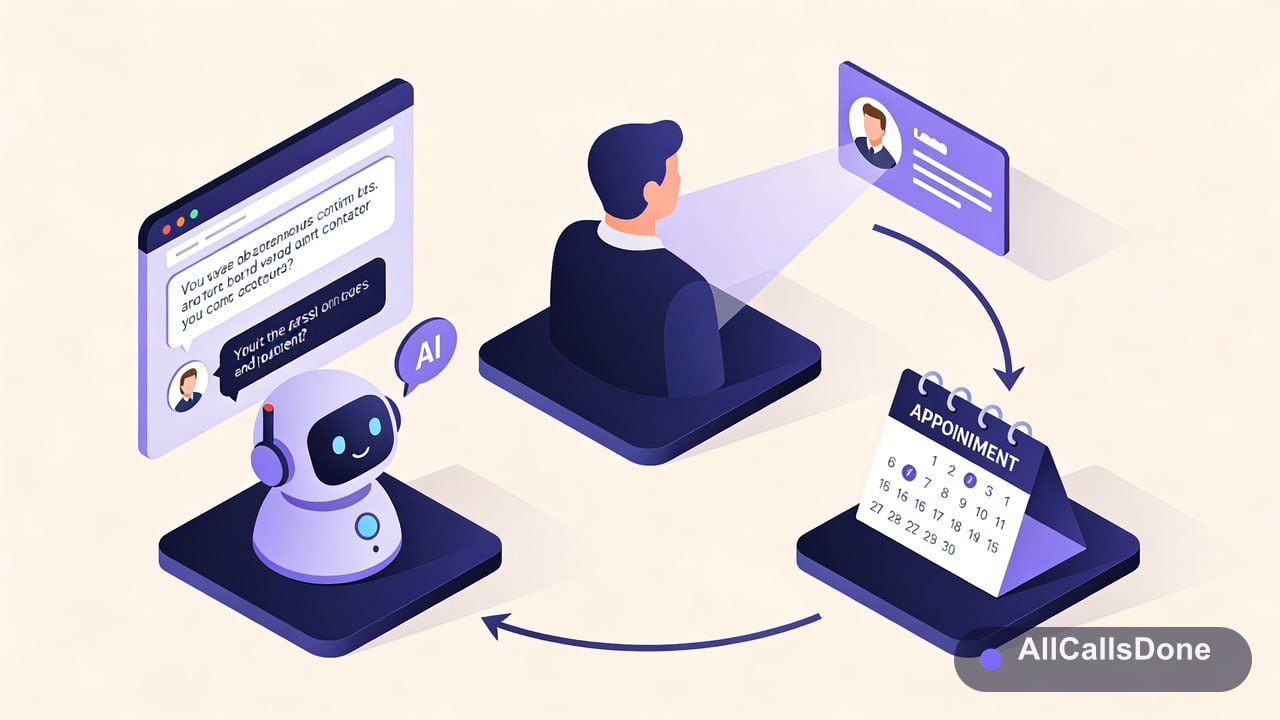
This is the part where I'll be straight with you: this is what we build, so this section is about our product. All Calls Done is a chat and voice widget you add to Squarespace with the same one-line paste as any other chatbot, except it's trained on your business and built to turn conversations into booked work.
Here's the install. In Squarespace, go to Settings → Advanced → Code Injection, and paste this into the Footer box:
Save, then open your live site. A chat button appears in the corner. When a visitor opens it, they get an assistant that knows your services, your hours, and your pricing, answers their questions in your words, and captures their name and contact details as a lead. It also does voice, so someone can talk instead of type. And because it connects to Google Calendar, it can book the appointment right there in the chat.
To set it up:
- Create an agent and tell it about your business: what you do, your service area, your hours, your pricing basics.
- Upload your FAQs and any documents customers commonly ask about.
- Copy your one-line script tag from the dashboard.
- Paste it into Squarespace Code Injection (Footer) and save.
- Optionally connect Google Calendar so the bot can book appointments, and set your brand color and greeting.
How it compares to the usual options:
| Rule-based chatbot | Basic AI chatbot | All Calls Done | |
|---|---|---|---|
| Understands natural questions | No | Yes | Yes |
| Trained on your business | Limited | Sometimes | Yes |
| Captures leads | Rarely | Sometimes | Yes |
| Books appointments | No | No | Yes |
| Voice as well as chat | No | No | Yes |
| Installs with one Squarespace paste | Yes | Yes | Yes |
To be fair, if all you need is a button that routes people to "sales" or "support," a simple rule-based widget does that and the install is identical. The hosted assistant is for when you want the chatbot to actually hold a conversation and book the work.
Troubleshooting on Squarespace
The chatbot doesn't show up. The most common cause is checking the editor instead of the live site. Custom code only runs on your published site, so open it in a normal or incognito tab. Then confirm you're on a Business plan or higher, and that you pasted into the Footer box and clicked Save.
It works for me but not on a fresh visit. Squarespace and your browser both cache pages. Give it a few minutes and try an incognito window, which loads a clean copy.
There are two chat buttons. You pasted the same snippet in two places, usually Code Injection and a Code Block. Remove one.
The widget looks cut off on mobile. A good hosted widget handles its own mobile sizing, so a clipped panel usually means a custom CSS rule on your Squarespace template is interfering. Test on an actual phone, not just a narrow desktop window.
Custom code options are missing entirely. That's the plan. Code Injection and Code Blocks need a Business plan or higher; the Personal plan hides them.
Frequently asked questions
Does Squarespace have a built-in chatbot? No. You add one from a third-party service by pasting its code, usually through Code Injection.
Do I need a paid plan? Yes. Custom code, which is how you add a chatbot, needs a Business plan or higher. The Personal plan doesn't allow it.
Will the chatbot work on mobile? Yes. A well-built widget resizes itself for phones automatically.
Can the chatbot use real AI? Yes, if you choose an AI chatbot service. Squarespace just hosts the snippet; the intelligence comes from whatever service you embed.
Will it slow down my site? Not noticeably, as long as you paste into the Footer box. Footer placement loads the widget after your page content.
The short version
Squarespace has no built-in chatbot, so you add one by pasting a service's <script> into Settings → Advanced → Code Injection → Footer, then viewing your live site (not the editor). You'll need a Business plan or higher for custom code. For a single page, use a Code Block instead.
The real decision isn't where to paste. It's which chatbot you paste. A rule-based widget routes people. An AI assistant trained on your business answers their questions, captures the lead, and books the appointment. Same install, very different result.
Want the kind that books the work for you? Try All Calls Done free for 14 days. No credit card required.