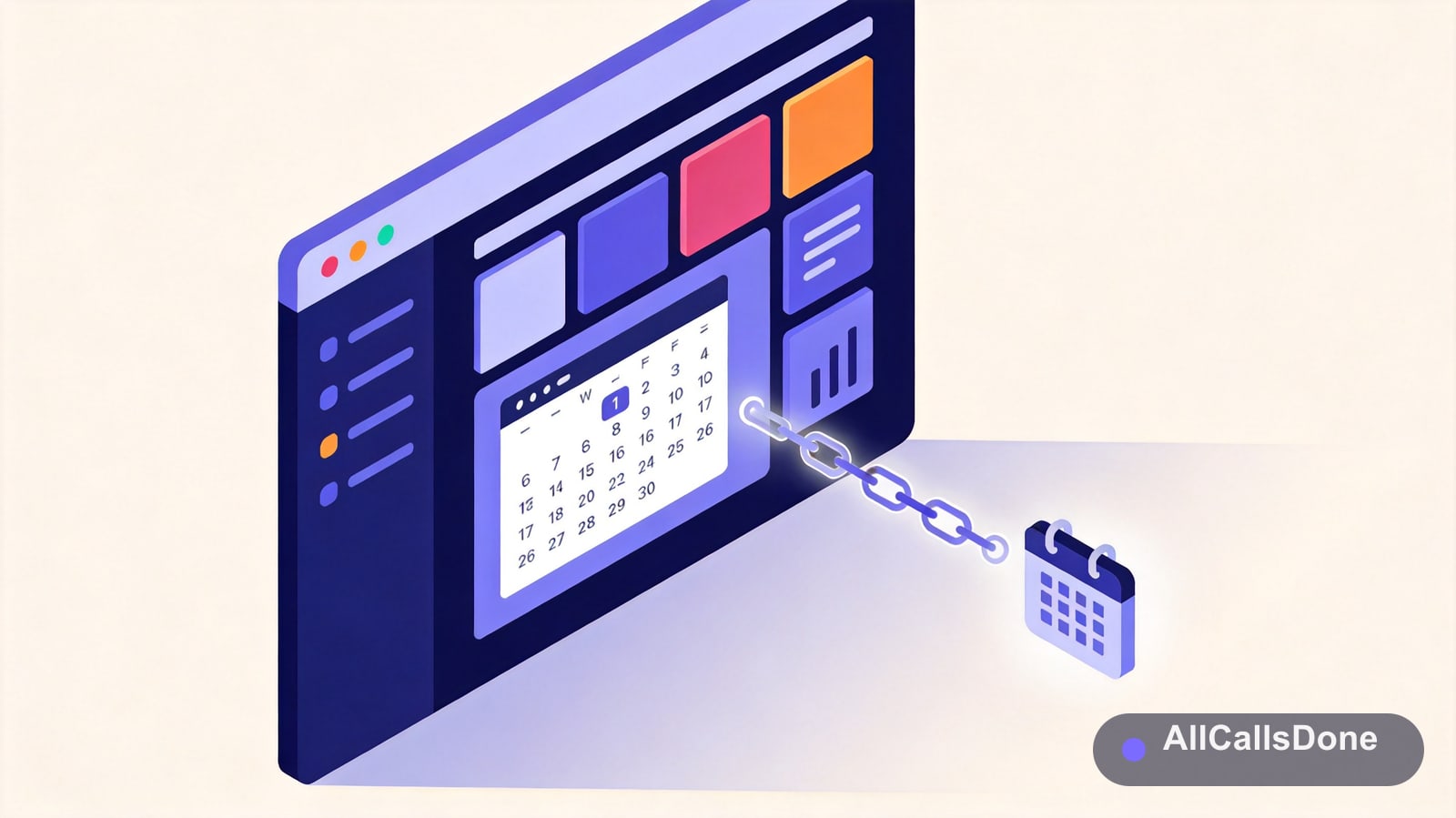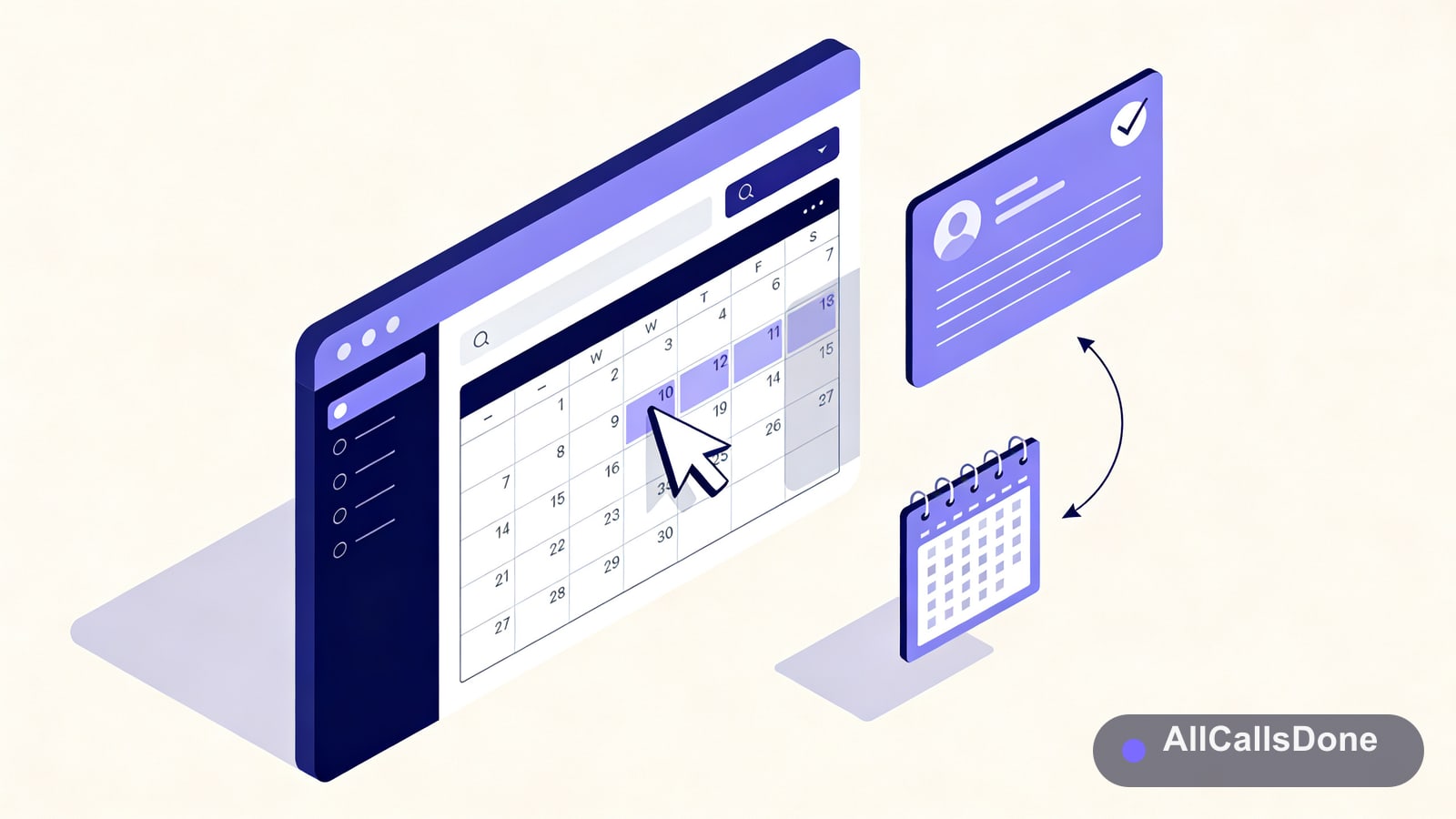
What "embed Google Calendar" actually means
Before you copy any code, it helps to be clear about what you're trying to do, because "embed Google Calendar" covers two very different goals.
The first goal is display. You want visitors to see what's happening: your class schedule, your open hours, upcoming events, when the office is closed. The calendar sits on the page and people read it. That's what the standard Google Calendar embed does, and it's free.
The second goal is booking. You want a visitor to pick a time and put themselves on your calendar. That's a different feature, and the plain embed does not do it. People can look at your calendar all day, but they can't add to it.
Most guides blur these together and leave you confused about why the embed you just pasted doesn't let anyone book a slot. So this article covers both. First the real display embed, step by step, including the platform-specific bits for WordPress, Wix, Squarespace, and the rest. Then the booking options, and where each one runs out of road.
Here's the quick version if you're in a hurry:
| What you want | What to use | Cost |
|---|---|---|
| Show a calendar of events | Google Calendar embed code | Free |
| Publish one event | "Add to Calendar" link or event embed | Free |
| Let people book a time slot | Google appointment schedule, or a booking tool | Free to paid |
| Answer questions and book the visitor in | AI chat or voice widget on your site | Paid |
Before you start: make the calendar embeddable
A private calendar will not show up on a public website. This is the single most common reason an embed renders as a blank box or an error. Google won't leak your private schedule to anonymous visitors, which is the right call, but it means you have to decide what to share.
You have two sharing levels that matter here:
- See all event details. Visitors see event titles, times, descriptions, and locations. Use this for a public events calendar where the content is meant to be read.
- See only free/busy (hide details). Visitors see that a block of time is taken, but not what it is. Use this if you want to show availability without exposing what you're doing at 3pm on Thursday.
To set this, open Google Calendar on desktop, hover over the calendar name in the left sidebar, click the three dots, and choose Settings and sharing. Under Access permissions for events, tick Make available to public and pick the visibility level you want.
One tip: don't embed your main personal calendar. Create a separate calendar (for example "Public Events" or "Shop Hours") and only put public-facing items on it. You get a clean public view and your private life stays private.
Method 1: The official Google Calendar embed code
This is the answer most people are looking for. It's free, it works on any website, and Google generates the code for you.
Step 1: Open the calendar's integration settings
On desktop, go to Google Calendar. In the left sidebar, find the calendar you want to embed, click the three dots next to it, and choose Settings and sharing.
Scroll down to the Integrate calendar section. You'll see two things: an Embed code box with a ready-made <iframe>, and a Customize button.
Step 2: Customize the look before you copy
Don't grab the default code yet. Click Customize and you get a live preview with controls for:
- View: month, week, or agenda (a simple list of upcoming events). Agenda usually looks best in a narrow sidebar.
- Title: rename it to something your visitors understand, like "Class Schedule" instead of your email address.
- Width and height in pixels.
- Color of the calendar.
- Time zone, so an out-of-town visitor sees your hours correctly.
- Show or hide the title, navigation buttons, date, print icon, and the time zone label.
- Week start day (Sunday, Monday, or Saturday).
Set these the way you want and the embed code on the left updates as you go.
Step 3: Copy the iframe
Copy the full <iframe> snippet. It looks roughly like this:
That src value is unique to your calendar. The ctz part is the time zone. Everything else is layout.
Step 4: Paste it into your site
Where the code goes depends on your platform. A few of the common ones:
- Plain HTML site: paste the iframe wherever you want the calendar to appear in your page's HTML.
- WordPress (block editor): add a Custom HTML block and paste the iframe in. Avoid the regular paragraph block, which will escape the code and show it as text. On the classic editor, switch to the Text tab first.
- Wix: add an Embed HTML element (Add > Embed Code > Embed HTML / iFrame), then paste the code into the box.
- Squarespace: add a Code Block to the section and paste the iframe.
- Webflow: drop an Embed element onto the canvas and paste the iframe inside.
- Shopify: edit the page or section, switch the content box to the
<>HTML view, and paste it there.
Save, publish, and load the page in an incognito window. Incognito matters: it tests the calendar the way a logged-out stranger sees it, which is the whole point. If it's blank in incognito, your sharing settings from the earlier section aren't public yet.
Step 5: Make it responsive
The default iframe has a fixed width and height in pixels, so on a phone it gets cut off or causes sideways scrolling. The fix is a wrapper div with a percentage-based aspect ratio. Replace the fixed sizes like this:
The iframe now stretches to fill its container, and the container scales with the screen. Adjust the padding-bottom percentage to make it taller or shorter. On very small screens the agenda view tends to read better than the month grid, so it's worth testing both.
Method 2: Embed a single event or an "Add to Calendar" button
Sometimes you don't want a whole calendar. You're running one event, a webinar or a sale, and you want people to save it to their own calendar.
Google Calendar can generate an event link. Open the event, click the three-dot menu, and choose Publish event. You get a snippet of HTML with an "Add to Calendar" button you can paste onto your page. When a visitor clicks it, the event drops into their calendar with the date, time, and description already filled in.
This is the better choice when the goal is a single date rather than an ongoing schedule. For recurring "add to your calendar" buttons across more events, there are small free tools that generate one button that works across Google, Apple, and Outlook calendars at once.
Method 3: Google appointment scheduling pages
Now we get closer to real booking. In 2026, Google Calendar has a built-in appointment schedule feature. You define your available hours, the appointment length, and a buffer between slots, and Google gives you a booking page. Visitors pick an open time and it lands on your calendar automatically.
To set one up, click Create in Google Calendar, choose Appointment schedule, set your availability and meeting length, then open Share to get the booking page link or an embed button for your site.
This is genuinely useful and it's free for personal Google accounts (with more controls on Google Workspace plans). It's the closest native option to letting someone book you.
It also has real limits:
- The booking page is Google's, so branding and customization are minimal. It looks like a Google form, not like your site.
- It only captures whatever fields Google's form asks for. There's no conversation, no qualifying, no follow-up questions.
- A visitor has to already know they want to book. If they have a question first ("do you service my area?", "how much does this cost?"), there's nobody to answer it. They bounce.
For a solo consultant booking 30-minute calls, that's often enough. For a business that needs to answer questions and capture leads, it leaves money on the table.
The limitation every embed shares
Step back and look at all three methods. They share the same ceiling.
An embedded calendar is a one-way display. It shows information and waits. Even the appointment page, the most interactive of the three, only works for a visitor who has already decided. None of them answer a question. None of them follow up with someone who looked and left. None of them capture a lead you can call back.
Think about how a visitor actually behaves. Most people who land on your site aren't ready to book on the spot. They have a question first. Is this available next week? Do you cover my postcode? What does it cost? A static calendar can't answer any of that, so the unsure visitor, which is most of them, closes the tab.
That's the gap. The calendar shows your availability, but it can't have the short conversation that turns a curious visitor into a booked appointment.
The 2026 approach: let visitors book straight into your calendar
This is the part of the problem we built All Calls Done to solve, so I'll be upfront that this section is about our product. The idea is simple: instead of a static calendar that just displays, put a chat and voice agent on your site that can talk to a visitor, answer their questions, and book the appointment onto your Google Calendar for them.
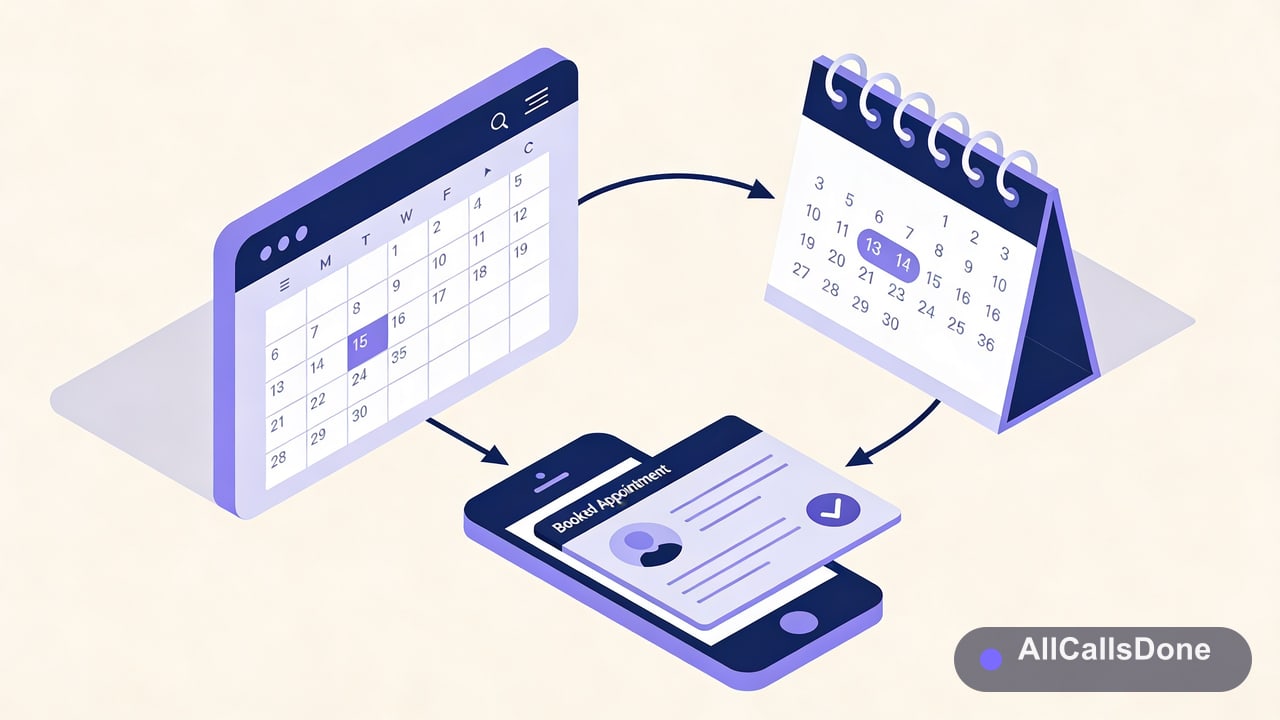
Here's the difference in practice. A visitor lands on your page with a question. They type it, or they click to talk. The agent answers using your business details and FAQs, checks your real availability, suggests a time, and writes the appointment to your connected Google Calendar. The lead is logged with the full conversation transcript, so even if they don't book, you know who came by and what they wanted.
The Google Calendar connection is a one-time setup. You authorize access through Google's standard OAuth screen, the same consent flow you've seen on any "Sign in with Google" button, and from then on the agent can create events on your calendar. You stay in control of which calendar it writes to and you can disconnect anytime.
| Plain calendar embed | Google appointment page | All Calls Done widget | |
|---|---|---|---|
| Shows your schedule | Yes | Limited | Not the point |
| Answers visitor questions | No | No | Yes |
| Books onto Google Calendar | No | Yes | Yes |
| Captures the lead if they don't book | No | No | Yes |
| Works as chat and voice | No | No | Yes |
To be fair, if all you need is to display your hours, the free embed in Method 1 is the right tool and you should stop there. The widget is for businesses where the bottleneck isn't showing availability, it's answering questions and catching leads before they leave.
How to set up booking with All Calls Done
If you want to try the booking route, the setup looks like this:
- Add the widget script to your site. It's one snippet, and it takes about five minutes. The same Custom HTML approach from Method 1 works on WordPress, Wix, Squarespace, Webflow, and Shopify.
- Configure the agent with your business details: what you do, your service area, your hours, your pricing basics.
- Upload your FAQs and any documents customers commonly ask about, so the agent answers in your words.
- Connect Google Calendar through the OAuth screen so the agent can read your availability and book appointments.
- Set your booking rules: appointment length, buffer time, and which hours are open.
After that, the agent handles inbound conversations day and night. You start each morning with a list of who came by, what they asked, and what got booked, already logged.
Troubleshooting common embed problems
The calendar shows a blank box or an error. Almost always a sharing problem. Go back to the calendar's Settings and sharing, confirm Make available to public is ticked, and test in an incognito window. Public setting changes can take a few minutes to propagate.
The times are wrong for my visitors. Check the ctz time zone parameter in the embed URL. Set it explicitly in the Customize tool rather than relying on the default, especially if your audience is in a different region than you.
It's cut off or causes sideways scrolling on mobile. You're using the fixed-pixel iframe. Switch to the responsive wrapper from Step 5 of Method 1.
My events aren't appearing. Make sure the events are on the specific calendar you embedded, not a different one in your account. If you maintain a separate "public" calendar, the events have to live there.
The code shows up as text on the page. Your editor escaped the HTML. Use a Custom HTML or Embed block, not a normal text or paragraph block.
I want more than one calendar in a single view. The embed URL accepts multiple src= parameters, each with its own calendar address. The easiest way to generate this is to add the extra calendars in the Customize preview, which builds the combined URL for you.
Frequently asked questions
Is embedding Google Calendar free? Yes. The display embed and the single-event button are free. Google's appointment scheduling is free on personal accounts, with extra controls on Workspace plans.
Will the embed work on phones? It will, but only if you use the responsive wrapper. The default fixed-size iframe gets clipped on small screens.
Can visitors book a time from a plain embedded calendar? No. A standard embed is display only. For booking you need Google's appointment schedule or a booking tool like the All Calls Done widget.
Do I have to make my whole calendar public? No, and you shouldn't. Create a separate calendar for public items and embed that one. Your main calendar stays private.
Can I show availability without showing what the events are? Yes. Set the sharing level to "See only free/busy (hide details)." Visitors see the busy blocks but not the contents.
The short version
If you need to show a schedule, use Method 1. It's free, it works everywhere, and the only two things people get wrong are the public sharing setting and the responsive wrapper. Get those right and you're done.
If you need people to actually book, a plain embed won't get you there. Google's appointment page handles simple booking, and an AI widget handles the messier reality where visitors have questions before they commit. Pick based on whether your problem is showing availability or starting conversations.
Want the booking-and-answering version? Try All Calls Done free for 14 days. No credit card required.